
Disclosure: Some of the links on Daily Digital Reviews are affiliate links. This means that if you click on a link and make a purchase, we may earn a small commission — at no extra cost to you.
Google Flow Is Trying to Rethink How You Make Videos
Google Flow review searches are picking up fast, and for good reason. AI video tools are everywhere right now, but most of them ask you to generate a clip, cross your fingers, and start over if it’s wrong. Google is pitching Flow as something different: a full creative workspace where you generate, refine, and extend footage without ever leaving the browser. That’s a bigger claim than most tools in this space make. I looked at the vendor’s documentation, the official feature set, the pricing page, and early creator commentary to see whether it holds up.
Quick Verdict: Google Flow is one of the more ambitious AI video tools available right now. Its combination of Veo 3.1, Gemini Omni, scene-building tools, and conversational editing puts it ahead of simple prompt-to-clip generators. The main catches are a credit-based economy that limits heavy use, advanced features that depend on which model and plan you’re on, and the fact that it’s still evolving quickly enough that today’s feature set may not match tomorrow’s.
Overall Rating: 4.3 / 5 ⭐
Feature depth: 4.5/5 · Ease of use: 4.0/5 · Pricing value: 4.0/5 · Trust signals: 4.5/5
What Is Google Flow?
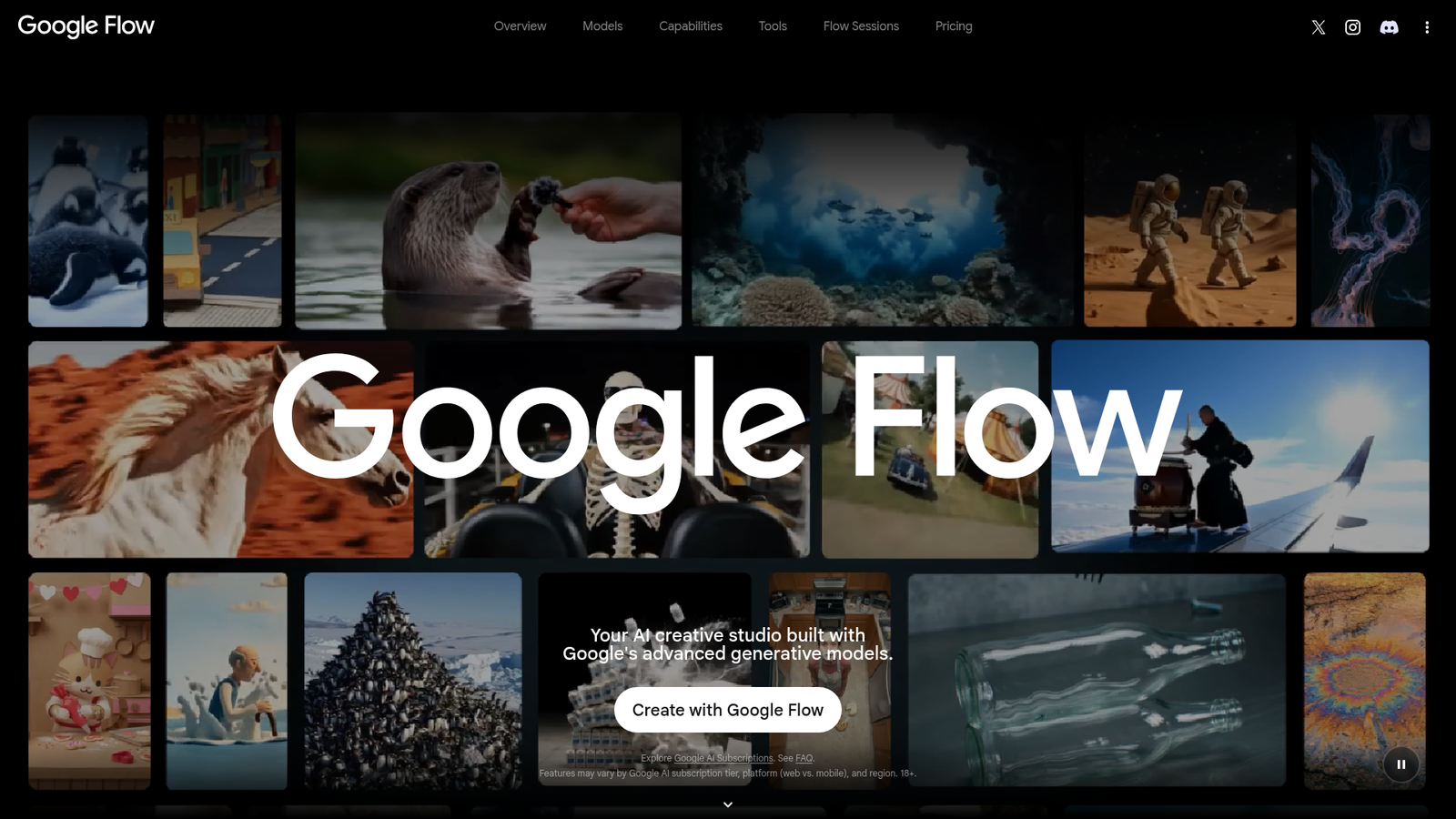
Flow is Google’s browser-based AI filmmaking studio, built on top of its most recent generative models. It lives at labs.google/fx/tools/flow and is described on the official page as a workspace for creating and editing videos from any input reference, whether real or generated. It’s not a standalone model — it’s a frontend that connects Veo 3.1, Gemini Omni, and image-generation models into one environment. Google pitches it at a wide range: independent filmmakers, content creators, educators, students, and anyone who wants to turn a visual idea into video without traditional production tools.
Key Features
Text to Video and Frames to Video
The starting point for most users. You type a description and Flow generates a clip, or you supply reference frames and let the model interpolate motion between them. Google documents both modes as available across Veo 3.1 Lite, Fast, and Quality variants, with feature behavior varying by model tier.
Ingredients to Video
This is one of the more interesting features. You bring in individual elements — a character, a prop, a location — and the model composes them into a scene. It’s designed to give creators more control over what appears in a shot rather than relying entirely on text description.
Scene Builder
Scene Builder is where Flow tries to act like a proper production tool. It lets you extend and stitch clips into a sequence, maintaining continuity in motion and character appearance across shots. Early creator walkthroughs consistently call this out as a practical workflow improvement over one-shot generation.
Camera Controls
Camera Controls let you influence motion, angle, and perspective during generation. That’s a meaningful differentiator. Most AI video tools give you limited say over how the camera moves; this feature is Google’s answer to that gap.
Video Extension and Conversational Editing
Video Extension lets you grow a clip beyond its original length. Conversational editing via Gemini Omni means you can type instructions to modify a generated video rather than re-prompting from scratch. Google documents video-to-video editing as exclusive to Gemini Omni Flash, so access depends on your plan and selected model.
Flow TV and Community Tools
Flow TV is a showcase of generated clips with visible prompts, useful for studying what works. The platform also supports a library of shareable tools — Type Overlays, Storyboard Studio, Shader Effects, Character X-ray, and more — some made by Google, some by independent creators.
How Google Flow Works
Step 1: Choose Your Input
You start by picking a creation mode: text prompt, reference frames, or ingredients. The interface routes your input to the appropriate model based on what you’re trying to make.
Step 2: Generate and Review
Flow uses Veo 3.1 for video generation and Gemini Omni for multimodal and conversational tasks. According to Google’s support documentation, capabilities vary by model — so a feature available in Veo 3.1 Quality might not behave the same way in Veo 3.1 Lite.
Step 3: Refine Iteratively
Once you have a clip, you can extend it, edit it via natural-language instructions, swap elements, or stitch it into a longer sequence with Scene Builder. This iterative loop is what separates Flow from simpler one-shot generators. The official page frames it as: plan, create, then refine — with an AI agent active at each stage.
What the Evidence Shows
What the vendor claims
Google describes Flow as suitable for professionals and beginners alike, and their Workspace announcement also frames it as useful for educators and students. The official page emphasizes iterative production: the idea is that you stay in the creative flow rather than cycling through disconnected tools. They specifically highlight physics realism, prompt adherence, and native audio in Veo 3.1 as selling points.
What users report
Creator commentary and tutorial walkthroughs — which make up most of the available user feedback at this stage — are generally positive. The features that draw the most praise are Ingredients to Video, Scene Builder, and the overall cinematic quality of Veo-powered output. Reviewers consistently note that results improve significantly with strong prompts, meaning there’s a learning curve. Practical frustrations include credit consumption on complex tasks and the reality that some of the most useful features are locked behind specific models or paid tiers. Because Flow is still relatively new, long-term or enterprise-level review data is thin. Most available feedback comes from early adopters and content creators experimenting with the tool rather than teams relying on it for production.
How it stacks up against the category
AI video tools like Runway and Pika are more mature products with established user bases. Luma Dream Machine and Kling are often cited for motion quality. Adobe Firefly Video has deep integration with the Adobe ecosystem. Flow’s angle is different: it tries to combine image generation, video generation, and conversational editing in a single Google-hosted workspace. That’s a broader scope than most competitors attempt, and the Veo 3.1 and Gemini Omni pairing is technically credible. The weakness is that breadth can dilute depth — and the model-dependent feature set means the experience isn’t always consistent. You can read our HeyGen review and our Autoshorts AI review for comparison on AI video tools with different use-case focuses.
Google Flow vs Competitors
| Feature | Google Flow | Runway | Pika | Kling |
|---|---|---|---|---|
| Text to Video | Yes | Yes | Yes | Yes |
| Conversational Editing | Yes (Gemini Omni) | Partial | Partial | No |
| Scene Builder / Multi-shot | Yes | Partial | No | Partial |
| Camera Controls | Yes | Yes | Partial | Yes |
| Image Generation Built In | Yes | Partial | No | No |
| Free Tier | Yes (50 daily credits) | Yes | Yes | Yes |
| Starting Paid Price | $4.99/mo (AI Plus) | ~$15/mo | ~$8/mo | ~$8/mo |
Pricing
Google Flow is not sold as a separate subscription. It is included with Google AI plans, and your plan gives you a monthly pool of Flow credits for image and video generation. The free tier gives you 50 daily credits and access to core tools including Veo 3.1, Gemini Omni Flash, Scene Builder, and most generation modes. Google AI Plus runs $4.99/month and includes 200 monthly credits plus tool creation and higher image generation limits. Google AI Pro is $19.99/month with 1,000 monthly credits and adds credit top-ups. Google AI Ultra comes in two versions: $99.99/month with 10,000 credits and 4K upscaling, or $199.99/month with 25,000 credits and more storage. Prices may vary by market. For current details, see Google Flow’s official pricing page.
| Plan | Monthly price | Google Flow credits | Main features |
|---|---|---|---|
| No Google AI subscription | $0/month | 50 credits per day | Try Google Flow free; limited access to supported models |
| Google AI Plus | $4.99/month | 200 credits/month | Google Flow access, Gemini Omni Flash video generation, and 1080p upscaling |
| Google AI Pro | $19.99/month | 1,000 credits/month | Higher Flow allowance, 1080p upscaling, and credit top-ups |
| Google AI Ultra | $99.99/month | 10,000 credits/month | High-volume Flow generation, Ultra credit rates for some Veo models, 4K upscaling |
Credit Usage Examples
Flow credits are charged per generation, not simply per prompt. For example, a Veo 3.1 Lite generation costs 10 credits for non-Ultra users and 5 credits for Ultra users; Veo 3.1 Fast costs 20 credits or 10 credits for Ultra users; Veo 3.1 Quality costs 100 credits. Gemini Omni Flash video generation costs 15–30 credits depending on whether you generate a 4-, 6-, 8-, or 10-second clip. Paid subscribers can use 1080p upscaling without spending credits, while 4K upscaling is Ultra-only and costs 50 credits per operation.
Pros and Cons
Pros
- One workspace for text-to-video, image generation, and conversational editing — no tool-switching required
- Scene Builder and Camera Controls support multi-shot production, not just single-clip generation
- Veo 3.1 and Gemini Omni are technically strong models with native audio and physics realism
- Free tier with 50 daily credits makes it low-risk to try
- Flow TV and community tools add educational and creative discovery value
Cons
- Credit-based pricing can get expensive fast for heavy production use
- Key features like video-to-video editing are model-dependent and not available across all tiers
Who Should Use Google Flow?
If you’re an independent filmmaker or content creator who wants to build multi-shot sequences with consistent characters and camera control, Flow is worth serious attention. The Scene Builder and Ingredients to Video tools are genuinely useful for that kind of iterative work. Educators and students exploring AI-assisted storytelling are also a natural fit — Google explicitly calls them out as target users.
Casual experimenters will find the free tier sufficient for trying things out, though 50 daily credits will run out faster than you expect on complex generations. If you’re already deep in Google’s ecosystem — using Gemini, Google One, or Google Workspace — the AI Pro plan bundles a lot of value beyond just Flow.
Flow is probably not the right pick if you need a mature, stable production environment with long-term reliability guarantees, or if you do most of your video editing in Adobe Premiere and want tight integration there. Adobe Firefly Video is a better match for that workflow. You might also check our Gemini review for broader context on Google’s AI ecosystem.
Google Flow Main Facts
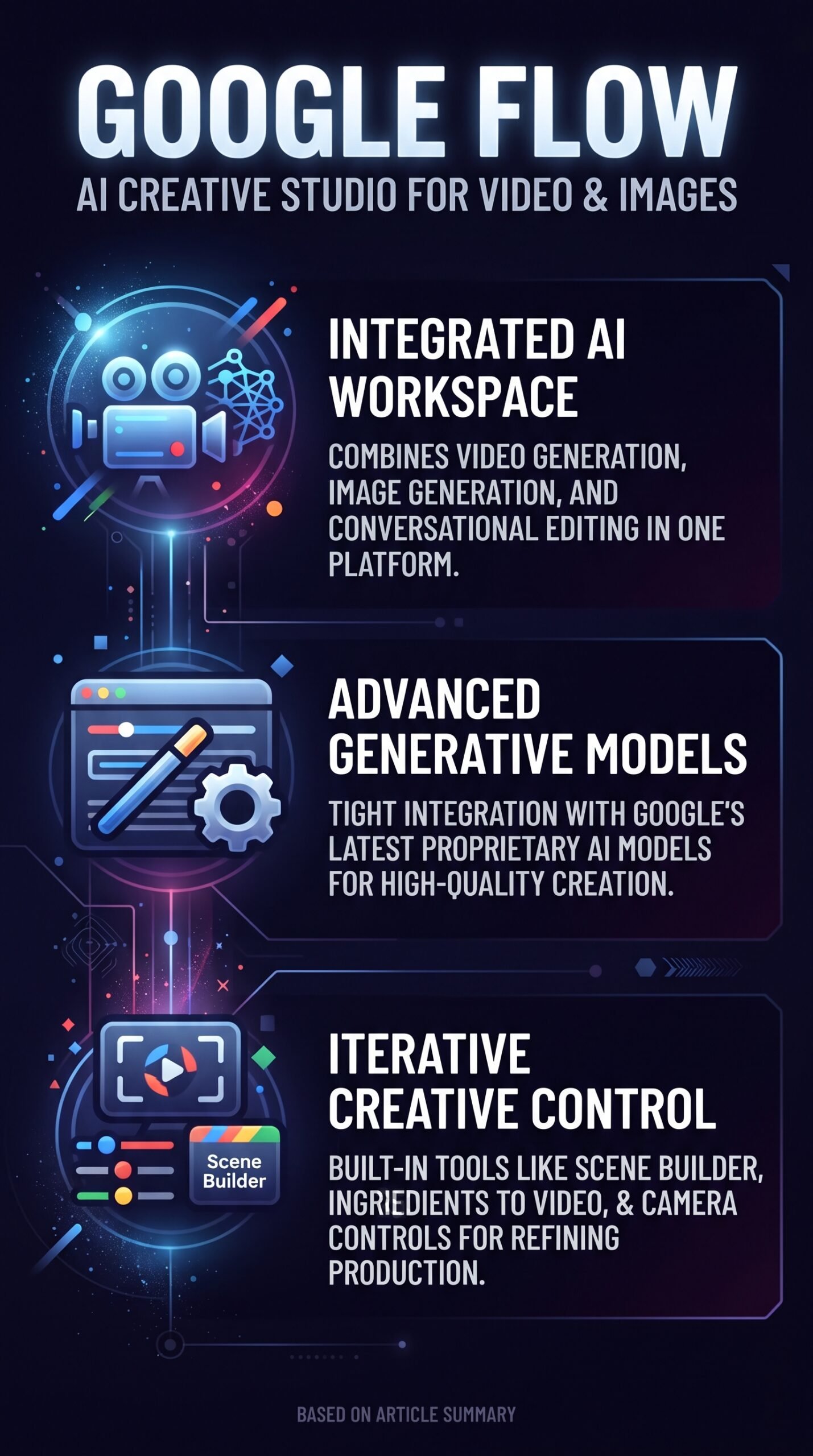
FAQ
Is Google Flow free to use?
Yes. You can use Flow with a Google Account at no cost and receive 50 daily Google Flow credits. All core tools including Text to Video, Scene Builder, and Ingredients to Video are accessible on the free tier, though some advanced features require a paid Google AI plan.
What models power Google Flow?
Flow uses Veo 3.1 for video generation (in Lite, Fast, and Quality variants), Gemini Omni Flash for conversational editing and multimodal tasks, and image-generation models branded as Nano Banana. Feature availability varies by which model handles a given task.
How does Google Flow differ from Runway or Pika?
Flow’s main difference is its scope. Rather than just generating clips, it combines video generation, image tools, scene building, and conversational editing in one interface. Runway and Pika are more established but more narrowly focused on video generation itself.
Can I edit an existing video in Google Flow?
Yes, but with a caveat. Video-to-video editing is available through Gemini Omni Flash, which means it’s tied to that specific model and may require a paid tier for full access. The feature lets you modify generated or uploaded video using natural-language prompts.
Final Verdict
Google Flow is the most ambitious AI video workspace Google has shipped. It’s not just a video generator — it’s an attempt to build a full creative pipeline in the browser, with models for every stage of production. For solo creators who want cinematic output and iterative control without switching between a dozen tools, that’s a genuinely useful direction.
The limitations are real though. Credit costs add up, the best features are gated by model and plan, and the product is moving fast enough that what’s true today may shift by next quarter. If you’re willing to accept that this is still an evolving tool, the free tier is an easy starting point. Heavy users will want to do the math on credits before committing to a paid plan.
If you want to explore what else Google’s AI stack offers, see our Gemini review for the bigger picture.
Review Methodology
This review is based on analysis of Google Flow’s official documentation, pricing pages, and feature set at labs.google/fx/tools/flow, combined with user reports gathered from creator tutorials, walkthrough commentary, and third-party coverage of the product’s 2026 feature rollout.