
Disclosure: Some of the links on Daily Digital Reviews are affiliate links. This means that if you click on a link and make a purchase, we may earn a small commission — at no extra cost to you.
CapCut Is Everywhere — But Is It Actually Worth It?
CapCut has become one of the most widely recognized video editing tools in the creator space, and it’s easy to see why. It’s free to start, works on mobile, desktop, and web, and produces polished short-form videos faster than almost anything else in its category. But the product has changed a lot. What started as a mostly free editor has shifted into a clearly monetized subscription product, and that shift has left some creators frustrated.
I’ve analyzed CapCut’s feature set, pricing structure, and user feedback from across the web to give you a clear picture of what it actually delivers in 2026 — and where it falls short.
Quick Verdict: CapCut is a strong choice for creators who make short-form content for TikTok, Reels, or YouTube Shorts. It’s fast, template-driven, and genuinely beginner-friendly. The main catch is pricing transparency — plans vary by region and platform, and more features keep moving behind paywalls.
Overall Rating: 4.1 / 5 ⭐
Feature depth: 4/5 · Ease of use: 4.5/5 · Pricing value: 4.0/5 · Trust signals: 4.0/5
What Is CapCut?
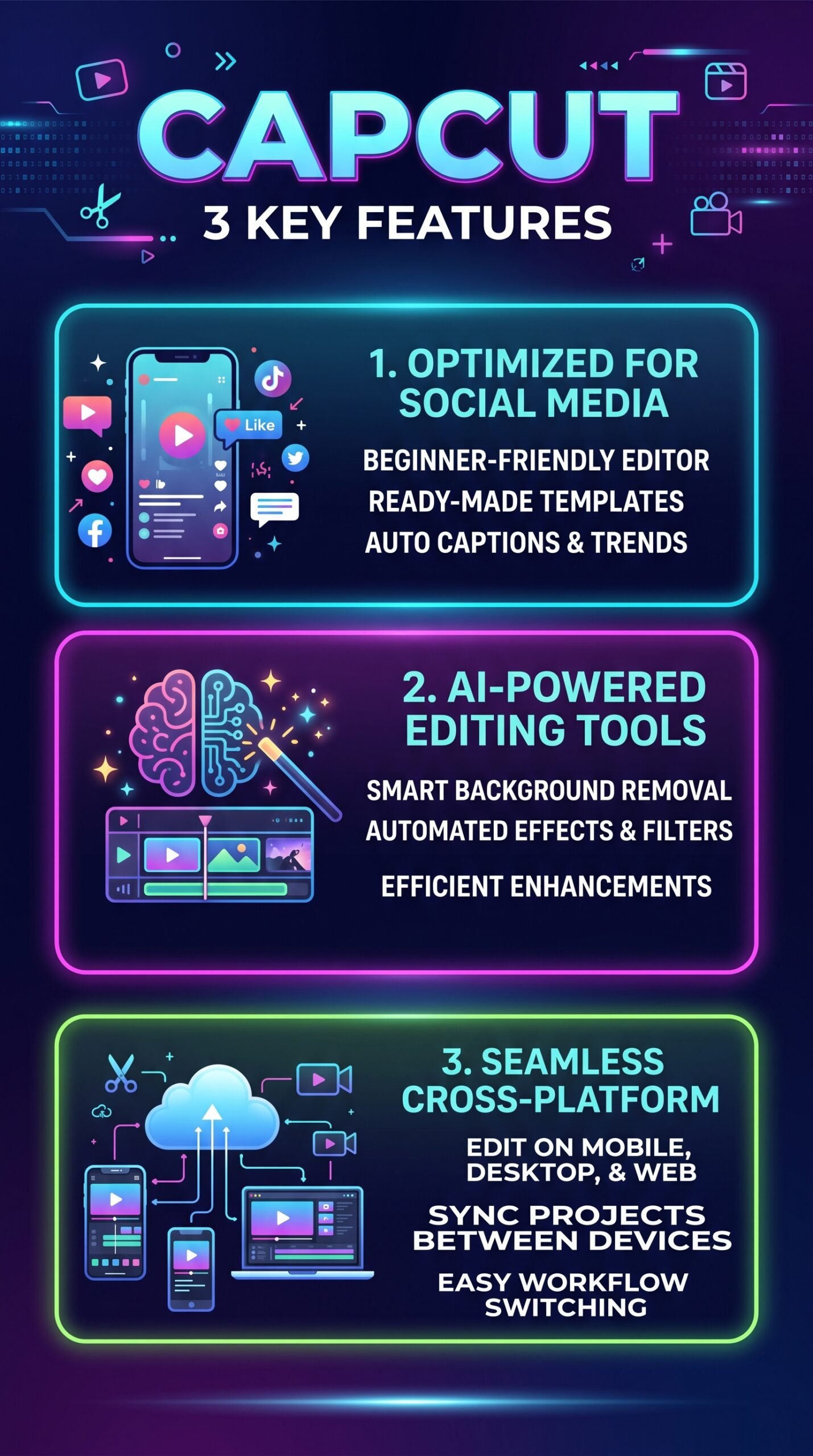
CapCut is a timeline-based video editor built for creators who want to produce social-media-ready content quickly. It covers the basics — trimming, splitting, transitions, text overlays, audio editing — but its real differentiator is automation. AI-powered captions, background removal, voice tools, and a large template library mean you can build a polished Reel or Short in minutes without touching a single advanced setting.
It sits between lightweight consumer editors and professional suites. It’s not trying to compete with DaVinci Resolve or Premiere Pro. Its target users are content creators, small teams, and solopreneurs who prioritize speed and social-native formatting over deep post-production control.
Key Features
Cross-Platform Editing
CapCut runs on mobile, desktop, and in the browser. You can start a project on your phone and continue it on your laptop without losing progress. For creators who move between devices a lot, that flexibility is genuinely useful. Cloud sync is available on paid tiers.
AI-Assisted Tools
This is where CapCut has invested heavily. The feature set includes auto captions in multiple languages, background removal for both images and video, text-to-speech with AI voices, voice enhancement, background noise removal, and an AI image generator. There’s also a Video Studio feature that can reportedly build a video from scratch based on a text prompt. These tools are what separate CapCut from basic free editors — though many of the more advanced ones sit behind paid plans.
Templates and Effects
CapCut’s template library covers TikTok and Reels formats, social media posts, AI effects, and business content. The vendor positions this as a key time-saver for creators who don’t want to start from a blank timeline every time. Users consistently praise the template quality in reviews.
Audio and Text Tools
The editor includes audio extraction, noise removal, voice enhancement, and text-to-speech. These are useful if you’re producing voiceover-heavy content or cleaning up shaky audio from a phone mic.
How CapCut Works
Start From a Template or Blank Timeline
You can either pick a template from the library or upload your own clips and start editing from scratch. Templates auto-fill with your footage and apply transitions, music, and effects. The guided workflow makes it easy to get to a finished-looking video without much technical knowledge.
Apply AI Edits
From the editor, you can trigger AI features like auto captions, background removal, or style effects with single clicks. These run automatically and give you a result to adjust rather than forcing you to configure settings manually.
Export and Publish
According to the vendor’s documentation, CapCut supports watermark-free exports on paid plans, with HD export available. The free plan does offer exports, but some quality and format options are restricted depending on the plan tier. Projects sync across devices via cloud on higher tiers.
What the Evidence Shows
What the Vendor Claims
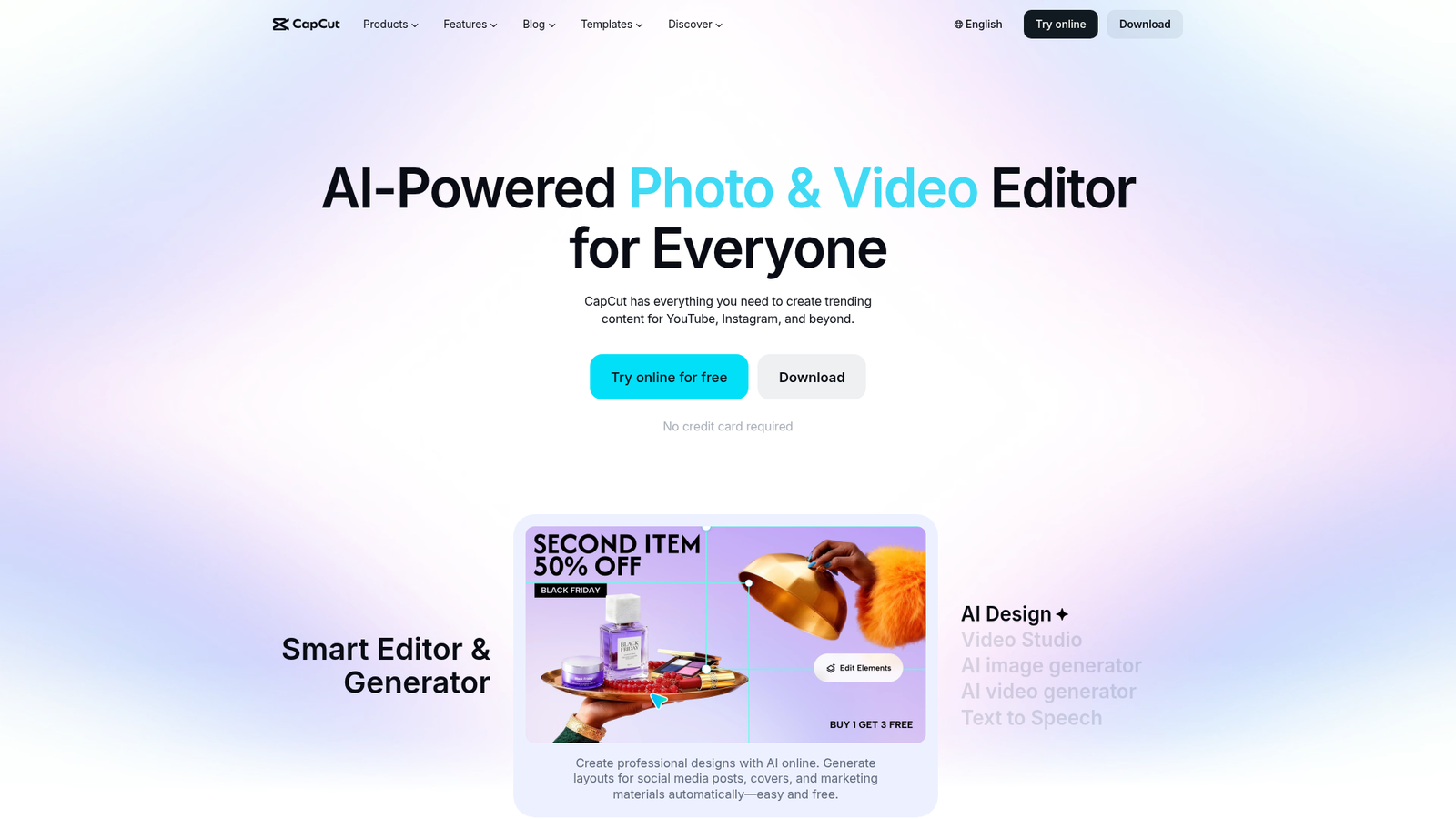
CapCut describes itself as an AI-powered photo and video editor for everyone, with a focus on helping creators produce trending content for YouTube, Instagram, and beyond. The official site highlights over 100 million downloads, a 4.7 App Store rating, and support across 20 languages. They pitch the template library and AI tools as the core value — speed and quality without a steep learning curve.
What Users Report
User sentiment lines up well with the vendor’s positioning on ease of use. Reviews across platforms consistently highlight that it’s fast, intuitive, and produces polished-looking social content with minimal effort. The template library and auto-captioning features come up repeatedly as genuine time-savers.
The friction shows up around pricing. Users frequently report confusion about what’s included in each plan, feature availability differences across mobile and desktop, and frustration that features that were once free have been moved behind subscriptions. Some reviews also raise questions about export restrictions and watermarking on free accounts. These aren’t isolated complaints — they’re recurring themes across multiple sources.
How It Stacks Up Against the Category
For short-form social content, CapCut’s feature set is competitive. Its AI tools are more built-out than what you get with Clipchamp or basic Canva video editing, and the template library is more creator-focused than VEED or InVideo for TikTok-style content. The weakness is less about features and more about pricing consistency and the gradual erosion of the free tier. Tools like VEED maintain more transparent pricing, and HeyGen offers more specialized AI video capabilities for a different use case.
CapCut vs Competitors
| Feature | CapCut | VEED | Canva |
|---|---|---|---|
| Mobile editing | Yes | Partial | Yes |
| Auto captions | Yes | Yes | Partial |
| Short-form templates | Yes — large library | Yes | Yes |
| Background removal | Yes | Yes | Yes |
| Free tier watermark-free | Partial (paid for full) | Partial | Partial |
| Starting price (monthly) | ~$9.99/mo | ~$18/mo | ~$15/mo |
If you’re comparing AI-generated video specifically, tools like Autoshorts AI take a different approach — fully automating video creation rather than assisting a manual workflow. That’s a different category, but worth knowing if automation is your main goal.
Pricing
CapCut uses a freemium model. The free tier gives access to basic editing and some templates. A Standard plan is commonly reported around $9.99/month, and the Pro plan sits around $19.99/month or $179.99/year. Business and team plans are quoted separately. One important caveat: reported pricing varies depending on your country and whether you’re buying through the app store or the desktop and web checkout, and regional differences can shift the final number. This inconsistency is a real complaint in user reviews. The prices shown are US-dollar estimates based on current published pricing. For the most accurate current pricing, check CapCut’s official website directly before buying.
| Plan | Monthly price | Annual billing equivalent | Total annual price | Annual savings |
|---|---|---|---|---|
| Free | $0/month | $0/month | $0/year | $0/year |
| Standard (mobile only) | $9.99/month | $7.50/month | $89.99/year | $29.89/year |
| Pro | $19.99/month | $15/month | $179.99/year | $59.89/year |
Pros and Cons
Pros
- Very easy to learn — new users can produce polished social videos quickly
- Strong short-form workflow with TikTok, Reels, and Shorts templates
- Available on mobile, desktop, and web with cross-device sync on paid plans
- Broad AI feature set including auto captions, background removal, and text-to-speech
- Large and actively updated template and effects library
Cons
- Pricing is inconsistent across regions, platforms, and app stores — hard to know exactly what you’ll pay
- Features that were once free have moved behind paid tiers over time
- Not suitable for complex multi-track production or advanced color grading
Who Should Use CapCut?
Content creators making short-form video are the clearest fit. If you’re posting to TikTok, Instagram Reels, or YouTube Shorts regularly, CapCut’s template system and AI caption tools will genuinely save you time.
Beginners and solopreneurs who need to produce decent-looking videos without a steep learning curve will find CapCut easier to pick up than most editors in this price range.
Small social media teams can benefit from the collaboration and cloud features on higher tiers, though they should verify team plan pricing before committing.
On the other hand, if you need professional-grade post-production — advanced color grading, multi-track audio mixing, or complex effects — CapCut isn’t the right tool. And if predictable, transparent pricing is a priority for your budget, the inconsistency across platforms and regions might push you toward alternatives like VEED or Clipchamp.
CapCut Main Facts
Frequently Asked Questions
Is CapCut free to use?
Yes, CapCut has a free tier that includes basic editing tools and access to some templates. However, advanced AI features, higher-quality export options, watermark removal, and cloud storage are tied to paid plans. The free version is enough for simple videos, but you’ll hit limits quickly if you want the full feature set.
What platforms does CapCut work on?
CapCut is available on iOS, Android, Windows, macOS, and in the browser. You can work across devices, and cloud sync is available on paid plans.
How much does CapCut cost per month?
Publicly reported pricing in 2026 puts the Standard plan around $9.99/month and Pro around $19.99/month or $179.99/year. Pricing can vary by region and purchasing platform (app store vs. web), so check the official site for the exact amount in your area.
Is CapCut good for professional video editing?
Not really. It’s designed for social content and short-form video, not professional post-production. For advanced color grading, multi-track timelines, or broadcast-quality output, a dedicated professional editor would serve you better.
Final Verdict
CapCut is one of the best tools available for creators who want to produce short-form social video quickly and consistently. The template library, AI captions, cross-platform workflow, and beginner-friendly interface are all genuine strengths. For TikTok and Reels creators especially, it’s hard to beat on convenience.
The concern worth taking seriously is the pricing situation. Plans vary by platform and region, features have migrated behind paywalls over time, and it’s not always clear what you’re actually getting on each tier. If that kind of ambiguity bothers you, or if you need professional depth, look at VEED for browser-based simplicity or a dedicated desktop editor for heavier work.
For most casual creators and solopreneurs making social content, though, CapCut is a solid pick — especially if you start on the free tier and see how far it takes you before committing to a plan.
Review Methodology
This review is based on analysis of CapCut’s official documentation, pricing pages, and feature set, combined with user reports gathered from app store reviews, Reddit discussions, and broader creator community feedback. No hands-on testing was conducted. All claims are grounded in publicly available vendor material or documented user sentiment.